
The Vessels section is the primary engine for granular fleet tracking. While the dashboard provides a macro view, this section allows you to interact with individual assets, helping you move from global data to specific operational actions in just a few clicks.
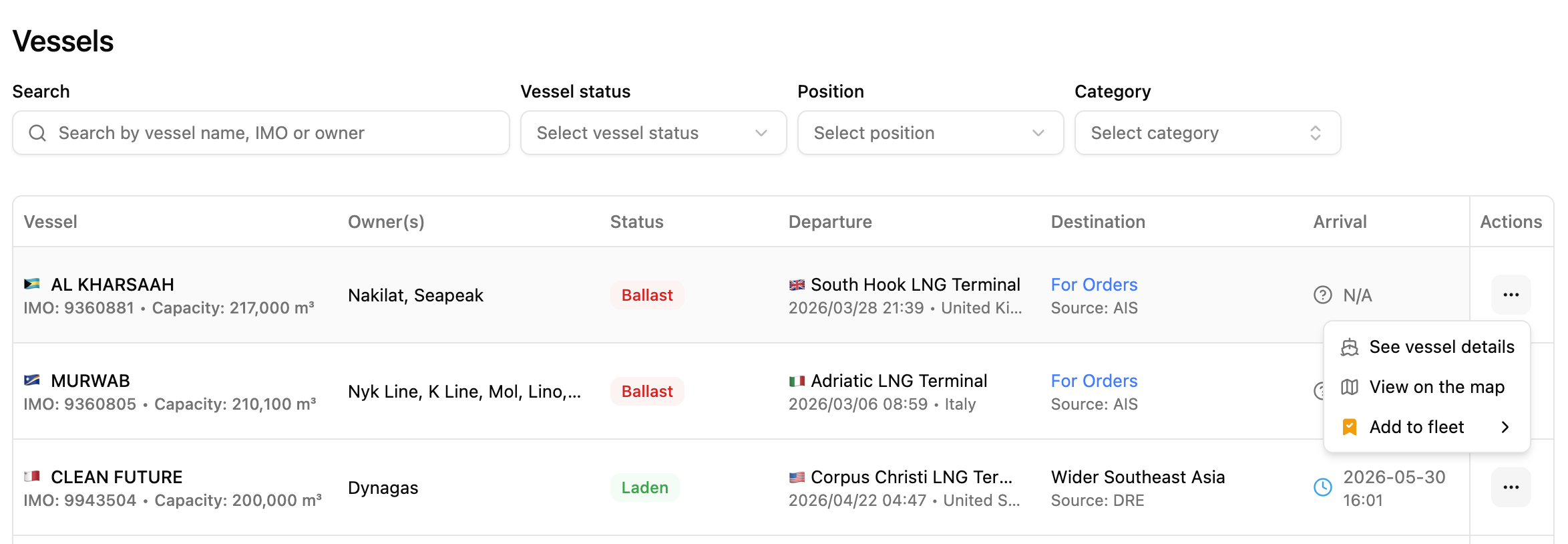
1. Advanced Search and Filtering
Navigating a fleet of hundreds of vessels is made effortless through a multi-layered filtering system:
Targeted Search: Quickly find an asset by vessel name, IMO, or owner.
Dynamic Status Filters: Sort the list by Vessel Status (Laden vs. Ballast), Position, or Category to isolate the ships that matter to your current mission.
Instant Data Overview: At a glance, view critical metrics for each ship, including its IMO, Capacity (e.g., 217,000 m³), and current Owner(s).
2. Real-Time Voyage Tracking
The vessel list provides a transparent window into current journeys:
Departure Details: See exactly when and from which terminal a ship departed (e.g., South Hook LNG Terminal).
Destination Intelligence: Monitor reported destinations, including those marked "For Orders," which signal high market flexibility.
Arrival Estimates: Track the estimated time of arrival (ETA) to anticipate port congestion or delivery windows.
3. Direct Actions: From Data to Decision
The Actions menu (the three-dot icon) is where your analysis becomes operational:
See Vessel Details: Jump into the deep-dive view we covered in previous articles to see technical specs and historical port calls.
View on the Map: Instantly locate the vessel in the live geospatial environment.
Add to Fleet: This is a key organizational tool. You can create custom "Fleets" to receive tailored notifications and streamlined reporting.
Why Fleet Customization Matters
The ability to "Add to Fleet" changes how you use Orbify. By categorizing ships into custom groups, you can filter your entire dashboard and event feed to focus only on the assets that impact your specific portfolio, saving time and reducing information noise.